

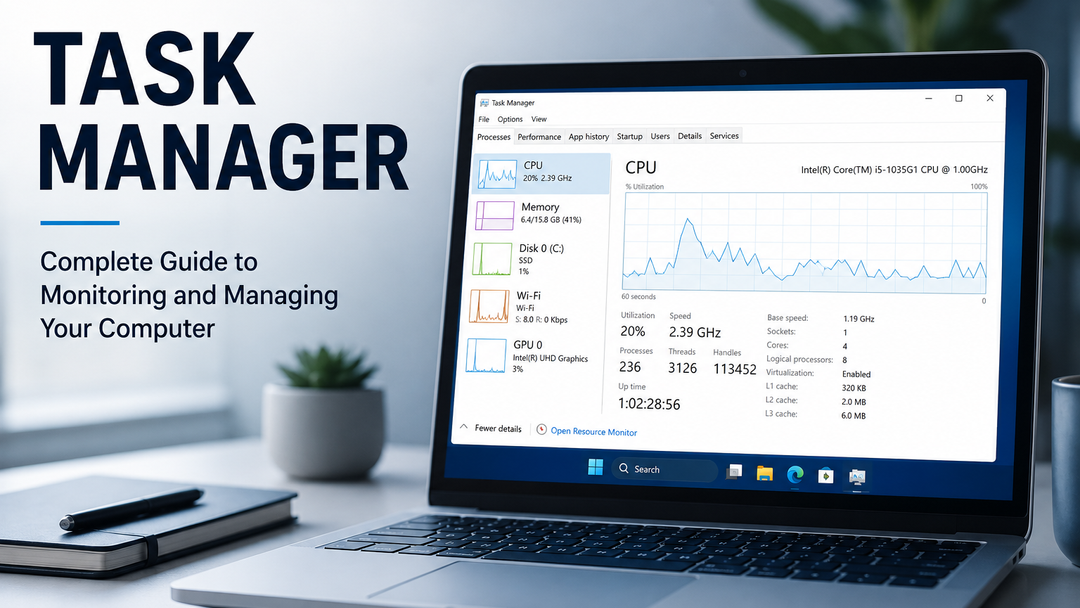
Introduction
Task Manager is a built-in Windows utility that helps users monitor system performance, manage running applications, track resource usage, and troubleshoot common computer issues. It provides real-time insights into CPU, memory, disk, and network activity, making it easier to identify performance bottlenecks and unresponsive programs.
Whether you want to close a frozen application, check what's slowing down your PC, or manage startup programs, Task Manager offers a quick and effective way to understand how your computer is performing. While many users only open it when something goes wrong, Task Manager includes several powerful tools that can help optimize system performance and improve overall productivity.
In this guide, you'll learn what Task Manager is, how to use its key features, and how it can help keep your computer running smoothly.
What Is Task Manager?
The Task Manager is a feature of Windows operating system that allows you to monitor all activities running on your computer at the moment. It can be thought of as a behind-the-scenes glance at all activities being juggled by the Windows operating system.
What it shows you:
- Running applications
- Background processes
- CPU usage
- Memory consumption
- Disk activity
- Network usage
- Startup programs
- System services
Most of that stuff runs without you ever noticing it. Task Manager makes it visible.
Why Task Manager Actually Matters
Modern computers are running dozens of things simultaneously. Most of it is fine. But sometimes one process gets greedy eating up CPU, hogging RAM, grinding disk access to a crawl and you'd never know unless you looked.
Task Manager helps you look. It's how you figure out why your laptop sounds like a jet engine during a Teams call, or why your "8GB RAM" machine feels like it's running on fumes.
Specific things it helps with: Catching resource-hungry apps before they ruin your afternoon
- Checking whether your hardware is actually at its limit or just struggling with one bad process
- Cutting boot times by trimming what launches at startup
- Closing frozen programs without a full restart
- Monitoring CPU, memory, and disk usage in real-time
This is not a cure-all. But it'll usually tell you what's broken.
How to Open Task Manager
Depending on the availability of certain options, there are several methods one may use.
Keyboard Shortcut
Ctrl + Shift + Esc
Fastest way. Goes straight there, no menus.
Ctrl + Alt + Delete
Press Ctrl + Alt + Delete, then pick Task Manager from the screen that appears. Takes an extra click but works reliably even when things are misbehaving.
Windows Search
Click the Start Menu, type Task Manager, and open it from the results.
Right-Click the Taskbar
In most Windows versions, right-clicking the taskbar gives you a direct "Task Manager" option.
Run Command
Press Windows + R, type taskmgr, hit Enter.
Shortcuts Worth Knowing
- Ctrl + Shift + Esc — Opens Task Manager directly
- Ctrl + Alt + Delete — Gets you there through the security screen
- Windows + R → taskmgr — Opens it through the Run dialog
The first one's the one to memorize. Especially when an app freezes and you can't click anything.
Understanding the Interface
When Task Manager opens, you'll see a set of tabs across the top. Each one covers something different.
- Processes — everything currently running
- Performance — real-time hardware graphs
- App History — resource usage over time for apps
- Startup — what launches when Windows boots
- Users — who's logged in and what they're running
- Details — granular process data
- Services — background Windows services
Most people only ever use Processes. That's fine, but the other tabs are worth knowing.
The Processes Tab
This is the one that gets the most use. It lists every app and background process currently running, with columns showing resource consumption.
Name — What the process is called.
CPU — How much processor power it's pulling. Anything consistently above 30-40% for a single process is worth watching.
Memory — RAM usage. High memory across the board means your system might genuinely need more, or there's something leaking memory it won't give back.
Disk — Storage activity. If this is pegged near 100% constantly, your system's going to feel sluggish no matter what else you do.
Network — Which processes are using bandwidth. Helpful when your connection feels slow and you can't figure out why.
Power Usage — How much power a process consumes. Mostly useful on laptops.
Monitoring CPU, Memory, Disk, and Network
CPU
High CPU usually means something's working hard or stuck in a loop it can't get out of. Software updates, video rendering, and browser tabs with heavy content can all spike it temporarily. Sustained high usage with nothing obvious running is the signal to investigate.
Memory
RAM gets filled up much quicker than people would think. If one has twenty tabs open on a browser, a few applications running, and something running in the background, then one may already be operating with 90 percent usage of their RAM without even knowing.
Disk
A disk constantly running at 100% usage will make your computer feel broken even when nothing's technically wrong. It's often Windows Search indexing or Windows Update doing its thing. Usually it settles. If it doesn't, Task Manager helps you find what's driving it.
Network
Most of the time, network usage is invisible .However, when you experience sudden slowdowns while no application is using up resources on your computer, then Task Manager can help you see what process is using up your bandwidth behind the scenes. And sometimes, it could be a system update! Sometimes it's something less expected.
The Performance Tab
This tab shows real-time graphs for CPU, memory, disk, ethernet or Wi-Fi, and GPU. It's not about individual processes — it's about the hardware itself.
When your computer seems to be moving too slowly and you need to know the reason for the same, this would definitely be the place to start. The difference between a CPU graph that is completely loaded at 100% versus one that is mostly filled lies here.
Managing Startup Applications
This one actually matters. A lot of programs add themselves to your startup list without making a big deal about it — messaging apps, cloud storage clients, update managers, game launchers. They accumulate over time. Every single one of those applications starts up even before you start using your web browser.
You'll find all of those processes listed under Startup tab in Task Manager and also have an option to disable any unnecessary application from starting up.
No program will be uninstalled.
You're just telling Windows "don't launch this at boot." The app still works when you open it yourself.
For most people, this is the single fastest way to improve boot times without spending money.
Ending Frozen Applications
When an app stops responding, the usual steps are:
- Open Task Manager (Ctrl + Shift + Esc usually still works even when apps are frozen)
- Find the application under the Processes tab
- Click it to select it
- Click End Task
That forces it to close. Any unsaved work in that application is gone, so save often if you're working in something unstable.
Common Problems You Can Actually Fix With Task Manager
Slow computer
Usually a resource-hungry process or too many things running at once. Processes tab shows you who's responsible.
High CPU usage
Something's working too hard. Could be legitimate (update, antivirus scan), could be a misbehaving process. Task Manager points you at it.
Memory filling up
Close things you don't need, or identify what's using the most.
Frozen program
End Task. That's it.
Slow startup
Startup tab. Disable things you don't need.
None of this is complicated. That's kind of the point.
Background Processes and Windows Services
When you first open Task Manager, the number of running processes can be startling. Most of them are Windows doing normal Windows things.
Runtime Broker, Windows Search Indexer, Audio Services, Host Process for Windows Tasks these aren't junk, they're infrastructure. Killing them because they look unfamiliar is how you end up with things behaving strangely for the rest of the session.
Before ending anything you don't recognize, look it up. A quick search on the process name tells you whether it's essential or disposable. Most background processes are doing something real, even if you'd never notice it.
Task Manager Alternatives on Mac and Linux
Task Manager is exclusive to Windows operating system, while Activity Monitor is available on Mac, while Linux users can access their System Monitor program.
Activity Monitor (Mac)
Mac OS X offers the Activity Monitor, where similar operations are performed: monitoring the performance of the processor, RAM, disk usage, networking, and killing applications when unresponsive. The Activity Monitor can be located via the Spotlight Search ("Activity Monitor").
System Monitor (Linux)
Almost all Linux desktop environments come with the Graphical System Monitor application that can be used to manage processes and monitor their activity, as well as send kill signals to stalled processes.
Command Line Utilities (Linux)
Linux users prefer working in command line environment, using `top`, `htop`, or `ps` utility.
Best Practices
A few things worth internalizing if you use Task Manager regularly:
- Don't end processes you don't recognize
- Check the Startup tab every few months and trim what you don't need
- Watch resource spikes over a few seconds before acting spikes are normal, sustained high usage is the signal
- Use the Performance tab to understand patterns, not just single moments
- When in doubt about a process, search it before killing it
Common Mistakes
The mistakes that tend to cause actual problems:
- Ending critical system processes because they're using memory
- Disabling startup items that Windows actually depends on
- Treating a temporary CPU spike as a crisis
- Stopping services without knowing what they do
The tool is powerful enough that being a little careful pays off.
Features Most Users Skip
Most people use Task Manager as an emergency "close this thing" button. But there's more in there than that — startup impact analysis, user session monitoring, detailed process trees, service management, full resource history.
The Details tab in particular is useful when you're trying to track down a process by its file location or understand parent-child process relationships. It's not something you need every day. But it's there when you do.
When Should You Actually Open Task Manager?
Use it when:
- Something's frozen
- Your computer feels unusually slow
- CPU or fan noise is unexpectedly high
- Memory seems full
- Boot times have gotten worse
- Network is slow and nothing obvious is running
Or just check it occasionally, even when nothing's wrong. It's a decent habit. Most slowdowns show up in the numbers before you feel them in the machine.
Conclusion
Task Manager does more than most people give it credit for. It's not just a way to close frozen programs it's a live view of what your computer's actually doing, which is useful information even when nothing's obviously wrong.
I think most casual users would get more out of it if they spent ten minutes exploring it while the machine's running fine, rather than waiting until something breaks. The Startup tab alone has probably saved millions of people from slow boot times they assumed were just how their computer worked.
It won't fix everything. Some slowdowns are hardware limits, not software problems. But it'll usually tell you which one you're dealing with — and that's a reasonable starting point.
FAQs
How Is Task Manager Used?
Task Manager is a built-in Windows application used for monitoring and managing system performance and processes. It displays the current system resource usage and allows one to close the unresponsive processes as well as manage which apps load on startup.
How Do I Access Task Manager Fast?
Use **Ctrl + Shift + Esc**. This is the quickest route; it opens Task Manager immediately. There is another way using Ctrl + Alt + Del, Windows Search, or Run.
Is it safe to terminate processes in Task Manager?
It is safe for applications that you have launched on your own. However, you may wish to learn about some unknown processes before terminating them, because killing the wrong process will likely lead to further instability during your current session.
What does high CPU usage mean in Task Manager?
There's an application that consumes resources like there's no tomorrow! This might be a system software upgrade, excessive tabs in your browser, video rendering, or even an application bug. Task Manager will tell you what process you need to worry about.
Can Task Manager improve computer performance?
Not really, because Task Manager is more like a diagnostic than a performance enhancing software. However, it makes it easier for you to identify any problem, which can be much more difficult to solve otherwise.
Can you explain the differences between Task Manager and Activity Monitor?
Task Manager is Microsoft's process control utility, while Activity Monitor is Apple's. They display information about all active processes and utilization of system resources in addition to the ability to force-stop an application. Other than that, there's no big difference.
How can I prevent applications from starting during the Windows startup using Task Manager?
Launch Task Manager and switch to the 'Startup' tab. Here you'll see a list of all programs that start automatically along with their startup impact on your PC. Click on the one you don't want to launch and select 'Disable'.
How do I get help when the Task Manager refuses to work?
If possible, restart the computer. However, in case this doesn't work due to the computer's state, the keyboard shortcut Ctrl + Alt + Delete will still do the trick. As for Task Manager problems, there's a chance that some malware may be the reason behind them.